Image Preloading in Next.js 15: Make your website load ultra-fast
When building modern web applications, image loading performance can make or break the user experience. Slow-loading images create frustrating visual gaps, l…
When building modern web applications, image loading performance can make or break the user experience. Slow-loading images create frustrating visual gaps, layout shifts, and gray placeholders that diminish the professional feel of your site.
After experimenting with various image optimization strategies in Next.js 15 App Router, I've developed a comprehensive approach that combines multiple preloading techniques to ensure images load instantly when users need them. This article outlines the complete strategy with practical code snippets you can implement in your own projects.
The Problem
In high-quality, image-heavy websites, we typically face several challenges:
1. Initial load time: Critical hero images need to load immediately
2. Section navigation: When users navigate to different sections, new images should appear instantly
3. Interactive components: Sliders, carousels, and galleries need to preload the next images.
Most approaches address only one of these issues, but we need a comprehensive strategy to handle all three.
The Solution: A Three-Tier Preloading Architecture
Our solution combines three different preloading techniques:
1. HTML <link rel="preload"> tags in the root layout for critical, site-wide hero images
2. Script-based preloading in section layouts for section-specific images
3. JavaScript utility preloading for interactive components like sliders and carousels
This multilayered approach ensures images are loaded at the right time while maintaining optimal performance.
Step 1: Root Layout Preloading for Critical Images
In your root layout file (app/layout.tsx), add <link rel="preload"> tags in the <head> section for all critical, above-the-fold hero images:
export default function RootLayout({
  children,
}: Readonly<{
  children: React.ReactNode;
}>) {
  return (
    <html lang="en">
      <head>
        {/* Preload critical hero images */}
        <link
          rel="preload"
          href="/assets/images/homepage/hero.webp"
          as="image"
          type="image/webp"
          fetchPriority="high"
        />
        <link
          rel="preload"
          href="/assets/images/about/hero.webp"
          as="image"
          type="image/webp"
          fetchPriority="high"
        />
        {/* Add more critical hero images here */}
      </head>
      <body>{children}</body>
    </html>
  );
}
Key points:
- Use fetchPriority="high" only for the most critical images
- Include the correct MIME type (type="image/webp", type="image/jpg", etc.)
- Only preload true hero images that are visible immediately on page load
Step 2: Section-Specific Preloading with Next.js Script
For each section layout (like /app/about/layout.tsx, /app/portfolio/layout.tsx), add a Script component that preloads section-specific images:
import React from "react";
import { Metadata } from "next";
import Script from "next/script";

export const metadata: Metadata = {
  title: "About",
  description: "This is the layout file for my About page",
};

export default function AboutLayout({ children }: { children: React.ReactNode }) {
  return (
    <>
      <Script id="preload-about-images">
        {`
          // This script runs on the client side to preload images
          (function() {
            // Only run once per session
            if (sessionStorage.getItem('aboutImagesPreloaded')) return;

            // Helper function to preload an image
            function preloadImage(url) {
              const img = new Image();
              img.src = url;
            }

            // Team section images
            preloadImage('/assets/img/team/team-1-1.jpg');
            preloadImage('/assets/img/team/team-1-2.jpg');
            preloadImage('/assets/img/team/team-1-3.jpg');
            preloadImage('/assets/img/team/team-1-4.jpg');
            preloadImage('/assets/img/team/team-1-5.jpg');
            preloadImage('/assets/img/team/team-1-6.jpg');
            preloadImage('/assets/img/team/team-1-7.jpg');
            preloadImage('/assets/img/team/team-1-8.jpg');
            preloadImage('/assets/img/team/team-1-9.jpg');

            {/* Add more images here */}

            // Mark these images as preloaded for this session
            sessionStorage.setItem('aboutUsImagesPreloaded', 'true');
          })();
        `}
      </Script>
      {children}
    </>
  );
}
Key points:
- Uses sessionStorage to ensure images are only preloaded once per session
- Works with Next.js App Router server components
- Simple script with no hydration issues
- Only preloads images for the specific section being viewed
Step 3: Intent-Based Preloading on Hover (Nav & Links)
Most sites only preload once the new page is requested. We can be faster: as soon as the user hovers/focuses/touches a link, we prewarm that page's hero assets. By the time they click, the hero renders instantly.
We'll do three tiny things:
- Declare hero assets (one source of truth)
- Map routes → hero keys (locale-aware)
- Listen for link intent and kick off preloads
3.1 - Declare hero assets (one array)
Create utils/heroAssets.ts:
"use client";

export interface HeroAsset {
  path: string;
  page: string; // canonical page key (e.g., "home", "about-us", "services")
  priority: "critical" | "high" | "normal";
  format: "webp" | "jpg" | "png" | "mp4" | "webm";
  type: "image" | "video";
  maxSize?: number;
}

export const HERO_ASSETS: HeroAsset[] = [
  { path: "/assets/img/home/hero.webp", page: "home", priority: "critical", format: "webp", type: "image" },
  { path: "/assets/img/about/hero.webp", page: "about-us", priority: "critical", format: "webp", type: "image" },
  { path: "/assets/img/contact/hero.webp", page: "contact", priority: "critical", format: "webp", type: "image" },
...
];
Why: We keep hero assets centralized. "critical" ones are fetched on init; "high/normal" wait for hover.
3.2 - Preload utility (localStorage + off-main-thread decode)
Create utils/imagePreloader.ts (or extend your existing one). The important bits:
- CORS-safe canvas usage (img.crossOrigin = "anonymous")
- OffscreenCanvas/createImageBitmap when available (decode off main thread)
- Batching for big collections like Services
"use client";

import { HERO_ASSETS, HeroAsset } from "./heroAssets";

type CacheStatus = "pending" | "loading" | "loaded" | "error";
interface CacheEntry {
  data: string;
  timestamp: number;
  path: string;
  size: number;
}

class ImageCache {
  private memory = new Map<string, string>();
  private status = new Map<string, CacheStatus>();
  private inflight = new Map<string, Promise<void>>();
  private readonly PREFIX = "img_pre_";
  private readonly MAX_AGE = 7 * 24 * 60 * 60 * 1000;

  async initialize(currentHeroKey?: string) {
    if (sessionStorage.getItem("img_cache_init")) {
      this.loadFromLocalStorage();
      return;
    }
    // Only preload "critical" for home + current page
    const shouldWarm = (a: HeroAsset) =>
      a.page === "home" || (currentHeroKey && a.page === currentHeroKey);
    const critical = HERO_ASSETS.filter(
      (a) => a.priority === "critical" && a.type === "image" && shouldWarm(a),
    );
    await Promise.all(critical.map((a) => this.preloadImage(a.path, "critical")));
    sessionStorage.setItem("img_cache_init", "true");
  }

  async preloadPageAssets(page: string) {
    const list = HERO_ASSETS.filter((a) => a.page === page);
    if (list.length <= 8) {
      await Promise.all(
        list.map((a) =>
          a.type === "image"
            ? this.preloadImage(a.path, a.priority)
            : this.preloadVideo(a.path),
        ),
      );
      return;
    }
    // batch big pages: first 6 now, rest on idle
    const first = list.slice(0, 6);
    const rest = list.slice(6);
    await Promise.all(first.map((a) => this.preloadImage(a.path, a.priority)));
    const idle =
      "requestIdleCallback" in window
        ? (cb: () => void) => (window as any).requestIdleCallback(cb, { timeout: 1500 })
        : (cb: () => void) => setTimeout(cb, 200);
    idle(() => {
      Promise.all(rest.map((a) => this.preloadImage(a.path, a.priority))).catch(
        console.warn,
      );
    });
  }

  async preloadImage(path: string, _priority: "critical" | "high" | "normal" = "normal") {
    if (this.inflight.has(path)) return this.inflight.get(path)!;
    if (this.status.get(path) === "loaded") return;
    const ls = this.getFromLocalStorage(path);
    if (ls) {
      this.memory.set(path, ls);
      this.status.set(path, "loaded");
      return;
    }
    const p = this.loadAndCacheImage(path).finally(() => this.inflight.delete(path));
    this.inflight.set(path, p);
    return p;
  }

  async loadAndCacheImage(path: string) {
    return new Promise<void>((resolve) => {
      const img = new Image();
      this.status.set(path, "loading");
      img.crossOrigin = "anonymous";
      (img as any).decoding = "async";
      img.addEventListener("load", async () => {
        try {
          const blob = await this.toBlob(img);
          const base64 = await this.blobToDataURL(blob);
          const entry: CacheEntry = {
            data: base64,
            timestamp: Date.now(),
            path,
            size: base64.length,
          };
          this.memory.set(path, base64);
          localStorage.setItem(this.PREFIX + btoa(path), JSON.stringify(entry));
          this.status.set(path, "loaded");
        } catch {
          this.status.set(path, "error");
        } finally {
          resolve();
        }
      });
      img.addEventListener("error", () => {
        this.status.set(path, "error");
        resolve();
      });
      img.src = path;
    });
  }

  private async toBlob(img: HTMLImageElement): Promise<Blob> {
    const offOk =
      typeof OffscreenCanvas !== "undefined" && typeof createImageBitmap === "function";
    if (offOk) {
      const bmp = await createImageBitmap(img);
      const off = new OffscreenCanvas(bmp.width, bmp.height);
      const ctx = off.getContext("2d")!;
      ctx.drawImage(bmp, 0, 0);
      if ("convertToBlob" in off)
        return (off as any).convertToBlob({ type: "image/webp", quality: 0.85 });
    }
    const canvas = document.createElement("canvas");
    canvas.width = img.naturalWidth;
    canvas.height = img.naturalHeight;
    canvas.getContext("2d")!.drawImage(img, 0, 0);
    return new Promise((res, rej) =>
      canvas.toBlob(
        (b) => (b ? res(b) : rej(new Error("toBlob failed"))),
        "image/webp",
        0.85,
      ),
    );
  }

  private blobToDataURL(blob: Blob) {
    return new Promise<string>((res, rej) => {
      const r = new FileReader();
      r.onload = () => res(r.result as string);
      r.onerror = () => rej(new Error("readAsDataURL failed"));
      r.readAsDataURL(blob);
    });
  }

  private getFromLocalStorage(path: string): string | null {
    const raw = localStorage.getItem(this.PREFIX + btoa(path));
    if (!raw) return null;
    try {
      const entry = JSON.parse(raw) as CacheEntry;
      if (Date.now() - entry.timestamp > this.MAX_AGE) {
        localStorage.removeItem(this.PREFIX + btoa(path));
        return null;
      }
      return entry.data;
    } catch {
      localStorage.removeItem(this.PREFIX + btoa(path));
      return null;
    }
  }

  private loadFromLocalStorage() {
    Object.keys(localStorage).forEach((k) => {
      if (!k.startsWith(this.PREFIX)) return;
      try {
        const entry = JSON.parse(localStorage.getItem(k) || "{}") as CacheEntry;
        if (entry?.path && entry?.data) {
          this.memory.set(entry.path, entry.data);
          this.status.set(entry.path, "loaded");
        }
      } catch {
        localStorage.removeItem(k);
      }
    });
  }
  // optional: stub
  private async preloadVideo(_path: string) {
    /* similar to images if needed */
  }
}

export const imageCache = new ImageCache();
export const initializeImageCache = (currentHeroKey?: string) =>
  imageCache.initialize(currentHeroKey);
export const preloadPageAssets = (page: string) => imageCache.preloadPageAssets(page);
export const getCachedImage = (path: string) =>
  (imageCache as any).memory?.get(path) || null;
3.3 - Locale-aware link intent prewarmer
Create components/PrewarmLinks.tsx. It listens for mouseover / focusin / touchstart anywhere on the document, finds the closest <a href>, figures out the target page key, then preloads the corresponding hero assets.
"use client";

import { useEffect } from "react";
import { usePathname } from "next/navigation";
import { preloadPageAssets, initializeImageCache } from "@/utils/imagePreloader";

// Canonical page keys we have hero assets for
const HERO_KEYS = new Set([
  "home",
  "about-us",
  "use-cases",
  "contact",
  "privacy-policy",
  "terms-and-conditions",
  "services",
...
]);

// Minimal route mapping (extend if you have more locales, in my case I use en and es only)
const routeMapping: Record<string, string> = {
  "sobre-nosotros": "about-us",
  servicios: "services",
  "casos-de-exito": "use-cases",
  contacto: "contact",
  "politica-de-privacidad": "privacy-policy",
  "terminos-y-condiciones": "terms-and-conditions",
  // reverse mapping so it works for EN too
  "about-us": "about-us",
  services: "services",
  "use-cases": "use-cases",
  contact: "contact",
  "privacy-policy": "privacy-policy",
  "terms-and-conditions": "terms-and-conditions",
};

function toHeroKeyFromPath(pathname: string): string {
  const clean = pathname.split("?")[0].split("#")[0];
  const parts = clean.split("/").filter(Boolean);           // e.g. ["es","servicios",...]
  const maybeLocale = parts[0];
  const segs = (maybeLocale === "es" || maybeLocale === "en") ? parts.slice(1) : parts;
  if (segs.length === 0) return "home";
  const first = segs[0];
  const mapped = routeMapping[first] || first;
  return HERO_KEYS.has(mapped) ? mapped : "home";
}

function heroFromEventTarget(target: EventTarget | null): string | null {
  const a = (target as HTMLElement | null)?.closest?.("a[href]") as HTMLAnchorElement | null;
  if (!a) return null;

  const explicit = a.getAttribute("data-prewarm-page");
  if (explicit && HERO_KEYS.has(explicit)) return explicit;
  try {
    const url = new URL(a.href, window.location.origin);
    return toHeroKeyFromPath(url.pathname);
  } catch { return null; }
}

export default function PrewarmLinks() {
  const pathname = usePathname() || "/";

  useEffect(() => {
    // Initialize cache for home + current page only
    const currentHero = toHeroKeyFromPath(pathname);
    initializeImageCache(currentHero);
    // Warm the current page (no-op after init)
    preloadPageAssets(currentHero);
    const handler = (e: Event) => {
      const hero = heroFromEventTarget(e.target);
      if (!hero) return;
      preloadPageAssets(hero);
      // nudge Next.js to prefetch code for same-origin links
      const a = (e.target as HTMLElement | null)?.closest?.("a[href]") as HTMLAnchorElement | null;
      if (a && a.origin === window.location.origin) {
        a.rel = a.rel ? `${a.rel} prefetch` : "prefetch";
      }
    };

    const opts = { capture: true as const };
    document.addEventListener("mouseover", handler, opts);
    document.addEventListener("focusin", handler, opts);
    document.addEventListener("touchstart", handler, opts);

    return () => {
      document.removeEventListener("mouseover", handler, opts);
      document.removeEventListener("focusin", handler, opts);
      document.removeEventListener("touchstart", handler, opts);
    };
  }, [pathname]);

  return null;
}
Finally, render it in your root (or locale) layout once:
// app/layout.tsx (or app/[locale]/layout.tsx)

import PrewarmLinks from "@/components/PrewarmLinks";

export default function RootLayout({ children }: { children: React.ReactNode }) {
  return (
    <html lang="en">
      <body>
        <PrewarmLinks /> // here :)
        {children}
      </body>
    </html>
  );
}
Result:
- First paint: only critical heroes for home + current page.
- Hover/focus/touch on a link: preloads that page's hero bundle (e.g., Services' big carousel).
- Click: instant hero, no jank.
Tip: you can force a particular link to preload a specific hero by adding data-prewarm-page="services" on the
<a>if needed.
Step 4: JavaScript Utility for Dynamic Components
Create a utility file (utils/imagePreloader.ts) for more advanced preloading in interactive components:
"use client";

// Types
export type PreloadStatus = "pending" | "loading" | "loaded" | "error";
export interface PreloadImageOptions {
  timeout?: number;
  abortController?: AbortController;
}
// Cache to track loaded images across the app
const imageCache = new Map<string, PreloadStatus>();
// Add global flag to track when critical images are loaded
if (typeof window !== "undefined") {
  (window as any).__PRELOADED_CRITICAL_IMAGES_READY__ = false;
}

/**
 * Simple function to preload multiple images with timeout and abort support
 * Returns a promise that resolves when all images are loaded
 */

export const preloadImages = (
  imagePaths: string[],
  options: PreloadImageOptions = {},
): Promise<void[]> => {
  if (typeof window === "undefined") return Promise.resolve([]);
  const {
    timeout = 10000, // 10 second timeout per image
    abortController = new AbortController(),
  } = options;
  // Filter out already loaded images
  const pathsToLoad = imagePaths.filter((path) => imageCache.get(path) !== "loaded");
  // If all images were already in cache
  if (pathsToLoad.length === 0) {
    if (typeof window !== "undefined") {
      (window as any).__PRELOADED_CRITICAL_IMAGES_READY__ = true;
    }
    return Promise.resolve([]);
  }
  // Create an array of promises
  const promises = pathsToLoad.map((path) => {
    return new Promise<void>((resolve) => {
      // Check if operation was already aborted
      if (abortController.signal.aborted) {
        resolve();
        return;
      }
      const img = new Image();
      // Resolve the promise when the image loads or errors
      img.onload = () => {
        imageCache.set(path, "loaded");
        resolve();
      };
      img.onerror = () => {
        imageCache.set(path, "error");
        console.warn(`Failed to preload image: ${path}`);
        resolve(); // Also resolve on error to continue
      };
      // Start loading the image
      if (imageCache.get(path) === "loaded") {
        resolve(); // Already loaded
      } else {
        imageCache.set(path, "loading");
        img.src = path;
        // Add timeout for this image
        if (timeout > 0) {
          setTimeout(() => {
            if (!img.complete && imageCache.get(path) !== "loaded") {
              console.warn(`Timeout preloading image: ${path}`);
              imageCache.set(path, "error");
              resolve();
            }
          }, timeout);
        }
      }
      // Handle abort for this image
      abortController.signal.addEventListener("abort", () => {
        img.src = ""; // Cancel the image load
        resolve();
      });
    });
  });
  // Return a promise that resolves when all images are loaded
  return Promise.all(promises).then(() => {
    // Set the global flag when all critical images are loaded
    if (typeof window !== "undefined") {
      (window as any).__PRELOADED_CRITICAL_IMAGES_READY__ = true;
    }
    return [];
  });
};

/**
 * Preloads the next X images in a collection starting from current index
 *
 * @param currentIndex Current active image index
 * @param images Array of all images in the collection
 * @param count Number of images to preload ahead (default: 2)
 * @param isCircular Whether the collection loops (default: true)
 */

export const preloadNextImages = (
  currentIndex: number,
  images: string[],
  count: number = 2,
  isCircular: boolean = true,
): void => {
  if (typeof window === "undefined" || images.length === 0 || count <= 0) return;
  const imagesToPreload: string[] = [];
  // Calculate which images to preload
  for (let i = 1; i <= count; i++) {
    let nextIndex;
    if (isCircular) {
      nextIndex = (currentIndex + i) % images.length;
    } else {
      nextIndex = Math.min(currentIndex + i, images.length - 1); // If we're already at the end, no point continuing
      if (nextIndex === currentIndex) break;
    }
    // Add to preload list if not already loaded
    if (imageCache.get(images[nextIndex]) !== "loaded") {
      imagesToPreload.push(images[nextIndex]);
    }
  }
  // Preload the images with a lower timeout for non-critical images
  if (imagesToPreload.length > 0) {
    preloadImages(imagesToPreload, { timeout: 5000 });
  }
};

/**
 * Helper function to extract image URLs from a nested data structure
 *
 * @param items Array of items with image URLs
 * @param imageProperty Property name that contains the image URL
 * @returns Array of image URLs
 */

export const extractImageUrls = <T extends Record<string, any>>(
  items: T[],
  imageProperty: keyof T,
): string[] => {
  return items.map((item) => item[imageProperty] as unknown as string).filter(Boolean);
};

/**
 * Preload all critical images for the site
 * Call this function from your app layout component
 *
 * @param criticalImages Array of paths to critical images
 */

export const preloadCriticalImages = (criticalImages: string[]): Promise<void[]> => {
  // Create an abort controller for cleanup
  const abortController = new AbortController();
  // If user closes tab during loading, abort preload
  if (typeof window !== "undefined") {
    window.addEventListener(
      "beforeunload",
      () => {
        abortController.abort();
      },
      { once: true },
    );
  }
  return preloadImages(criticalImages, {
    timeout: 15000, // Higher timeout for critical images
    abortController,
  });
};
Step 5: Create a Loading Hook
For first-time visitors, show a loading screen while critical images are loading:
"use client";

import { useState, useEffect } from "react";
/**
 * Custom hook to handle initial page loading state
 * Shows loading screen only on first visit to the site
 *
 * @param loadingTime Time in ms to show loading screen on first visit
 * @returns isLoading - True if the loading screen should be shown
 */
export function useInitialLoading(loadingTime: number = 1500): boolean {
  const [isLoading, setIsLoading] = useState(true);
  useEffect(() => {
    // Check if this is a direct page load or navigation
    const hasVisitedSite = sessionStorage.getItem("hasVisitedSite");
    if (hasVisitedSite) {
      // User has already visited the site in this session,
      // images are already preloaded - no need for loading screen
      setIsLoading(false);
    } else {
      // First time visiting the site - show loading for specified period
      // while preloaded images are being loaded
      const timer = setTimeout(() => {
        setIsLoading(false); // Mark that the site has been visited in this session
        sessionStorage.setItem("hasVisitedSite", "true");
      }, loadingTime);
      return () => clearTimeout(timer);
    }
  }, [loadingTime]);
  return isLoading;
}
Step 6: Using the Preloading in Components
Here's how to use the preloader in a carousel/slider component:
"use client";

import React, { useState, useEffect } from "react";
import Image from "next/image";
import { preloadNextImages, extractImageUrls } from "@/utils/imagePreloader";

interface SlideItem {
  id: number;
  imageUrl: string;
}

interface SliderProps {
  slides: SlideItem[];
  autoplaySpeed?: number;
}

const ImageSlider: React.FC<SliderProps> = ({ slides, autoplaySpeed = 3000 }) => {
  const [activeSlide, setActiveSlide] = useState(0); // Extract all image URLs for preloading
  const imageUrls = extractImageUrls(slides, "imageUrl"); // Preload next slide whenever active slide changes

  useEffect(() => {
    preloadNextImages(activeSlide, imageUrls, 1);
  }, [activeSlide, imageUrls]); // Autoplay timer

  useEffect(() => {
    const interval = setInterval(() => {
      setActiveSlide((current) => (current + 1) % slides.length);
    }, autoplaySpeed);
    return () => clearInterval(interval);
  }, [autoplaySpeed, slides.length]);

  return (
    <div className="slider">
      {slides.map((slide, index) => (
        <div key={slide.id} className={`slide ${index === activeSlide ? "active" : ""}`}>
          <Image
            src={slide.imageUrl}
            alt={`Slide ${index + 1}`}
            fill
            priority={index === 0} // Prioritize first slide
            sizes="100vw"
          />
        </div>
      ))}
      {/* Navigation dots */}
      <div className="slider-dots">
        {slides.map((_, index) => (
          <button
            key={index}
            className={`dot ${index === activeSlide ? "active" : ""}`}
            onClick={() => setActiveSlide(index)}
            aria-label={`Go to slide ${index + 1}`}
          />
        ))}
      </div>
    </div>
  );
};

export default ImageSlider;
Step 7: Using the Loading Hook in Pages
Implement the loading hook in your page components:
"use client";

import React from "react";
import { useInitialLoading } from "@/hooks/useInitialLoading";
import Loading from "@/components/ui/Loading";
import HeroSection from "@/components/HeroSection";
import FeaturedSection from "@/components/FeaturedSection";

export default function HomePage() {
  // Show loading component only on first visit
  const isLoading = useInitialLoading(1500);

  if (isLoading) {
    return <Loading />;
  }

  return (
    <main>
      <HeroSection />
      <FeaturedSection />
      {/* Other sections */}
    </main>
  );
}
Verifying It Works: DevTools and Performance Checks
After implementing this system, you'll want to confirm it's working as expected. Here's how to verify your preloading is functioning correctly:
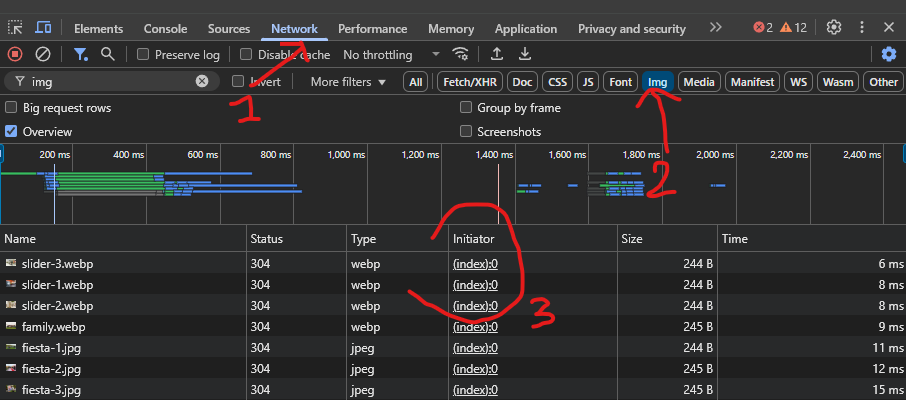
Method 1: Check the Network Tab
- Open Chrome DevTools (F12 or Cmd+Option+I)
2. Go to the Network tab
3. Filter by "Img" to see only image requests
4. Reload the page with the Network tab open
5. Look for your preloaded images - they should have:
- Type: "prefetch" or "img"
- Initiator: showing they came from preload links or your script
What confirms it's working:
- The (index) initiator - This indicates that these images were initiated by your HTML or JavaScript code. Your screenshot shows many images with (index) as the initiator, which means they were loaded through your preloading code rather than being loaded only when they appeared in the DOM.
- 304 status codes - Many of your images have HTTP status code 304 (Not Modified), which means the browser recognized it already had these images in cache and didn't need to download them again. This is exactly what we want!
- Low load times - Notice how many images show very fast load times (2-20ms). This indicates they were loaded from cache rather than from the network, which would typically take much longer.
- Parallel loading - In your waterfall chart at the top, you can see images loading in parallel, which is a sign of efficient preloading.
Method 2: Check Browser Cache
- In DevTools, go to the Network tab
2. Enable the "Size" column if not visible
3. Look for images loaded from "memory cache" or "disk cache", or even "other" when navigating to different sections
4. Images that show "other" were successfully preloaded
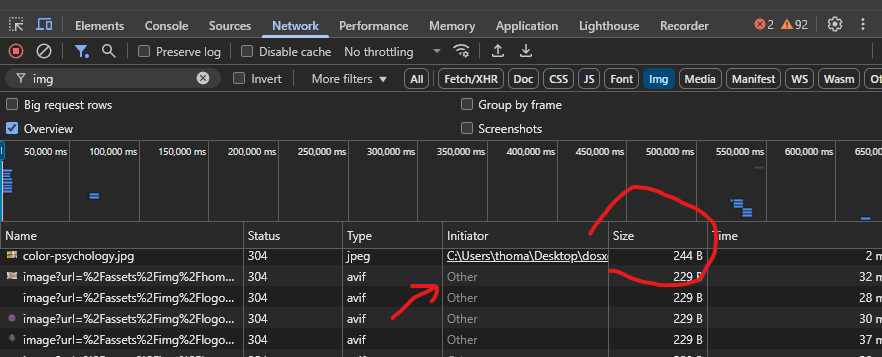
What "Other" means as an initiator:
- Background/indirect loading: These images weren't directly loaded by your main HTML document or explicit JavaScript code. Instead, they were loaded by another process or context.
- Likely your preloading script: In your case, this is very likely your image preloading JavaScript that's running in the background. These resources are being loaded because your preloading script is creating Image objects and setting their src attributes.
- Session cache working: The status code 304 combined with the "Other" initiator is a good sign - it means your preloading script loaded these images previously in the session, and now they're being served from cache.
Method 3: Session Storage Verification
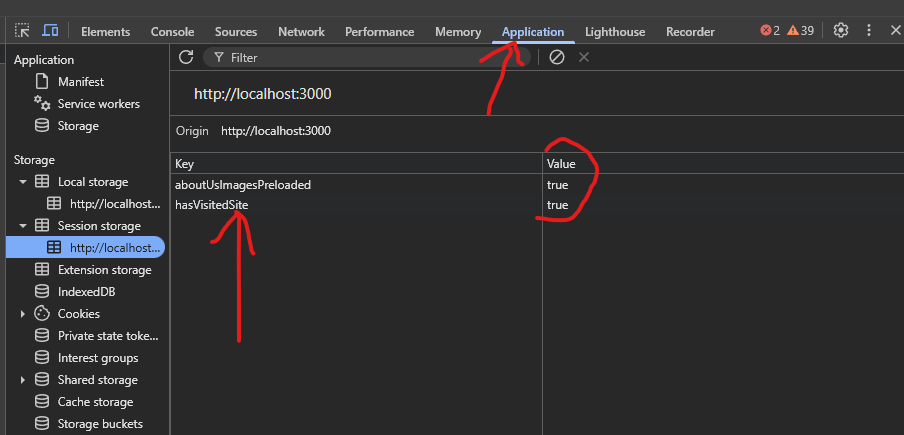
- Open DevTools
2. Go to the Application tab
3. Under Storage, click on "Session Storage"
4. Look for flags likehasVisitedSite,portfolioImagesPreloaded, etc.
5. These flags confirm that preloading scripts have executed
Method 4: Visual Confirmation Test
The most obvious sign that everything is working:
1. Clear your cache and cookies
2. Open your site in a new window
3. Wait for initial loading to complete
4. Navigate to different sections
5. Images should appear instantly without gray placeholders
For a more advanced test, try loading the site, then disable your internet connection before navigating to different sections. If images still appear despite being offline, they were successfully preloaded!
Benefits and Results
This comprehensive preloading strategy offers several key benefits:
1. Instant section transitions: When users navigate between pages, images appear immediately
2. Smooth sliders/carousels: Next slider images are pre-cached before they're displayed
3. Optimized initial loading: Only critical hero images load immediately, with the rest in parallel
4. Browser-friendly caching: Images stay cached for the entire session
5. Server component compatibility: Works with Next.js App Router without hydration errors
In my projects, this approach has eliminated visual gaps and gray placeholders, resulting in a much more polished, professional user experience. Page navigation feels instantaneous, and sliders transition smoothly without the jarring effect of images loading mid-animation.
By combining HTML preload tags, section-specific script preloading, and a JavaScript preloader utility, we've created a comprehensive image preloading system that covers all the main scenarios in a Next.js 15 application.
This strategy is particularly effective for image-heavy sites like portfolios, e-commerce, and marketing sites where visual presentation is crucial. The improved user experience is well worth the effort to implement this solution.
Remember that preloading too many images can be counterproductive, so focus on truly critical visuals that impact the user's immediate experience. With this balanced approach, you'll have lightning-fast image loading without sacrificing overall performance.
If you liked this article, feel free to connect with me!
- Github: https://github.com/thomasaugot
- Portfolio: https://thomasaugot.com/
- LinkedIn: https://www.linkedin.com/in/thomas-augot/
También publicado en Medium